Prepare for testing
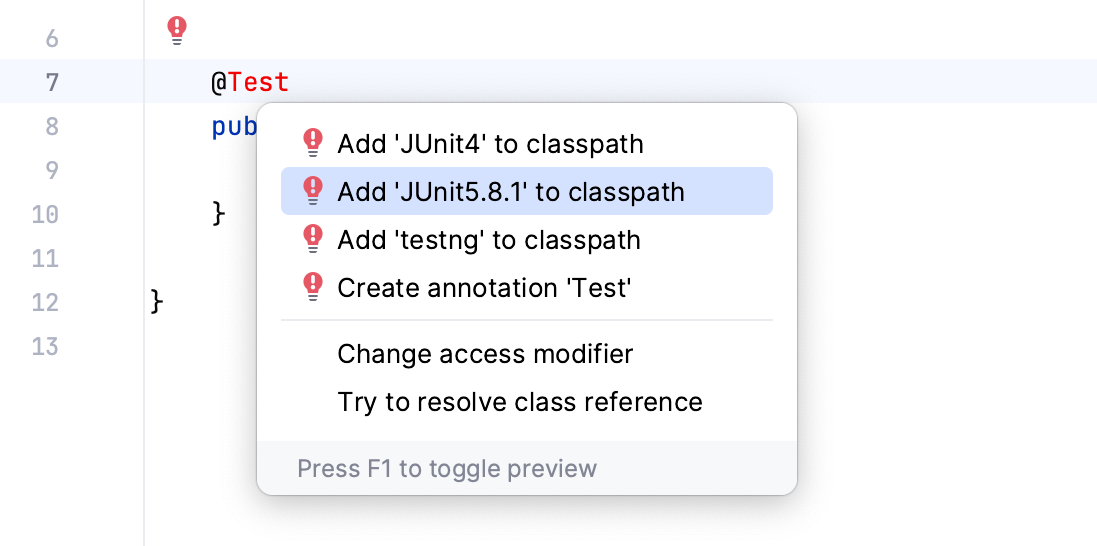
IntelliJ IDEA allows you to add missing libraries as you code: once the IDE detects that you're using some code from the library that is not yet added to your project, it will prompt you to download and install it.
You can also add libraries to your project manually. For example, this can be helpful if you need a specific library version or distribution.
In the main menu, go to ().
Under Project Settings, select Libraries and click
 .
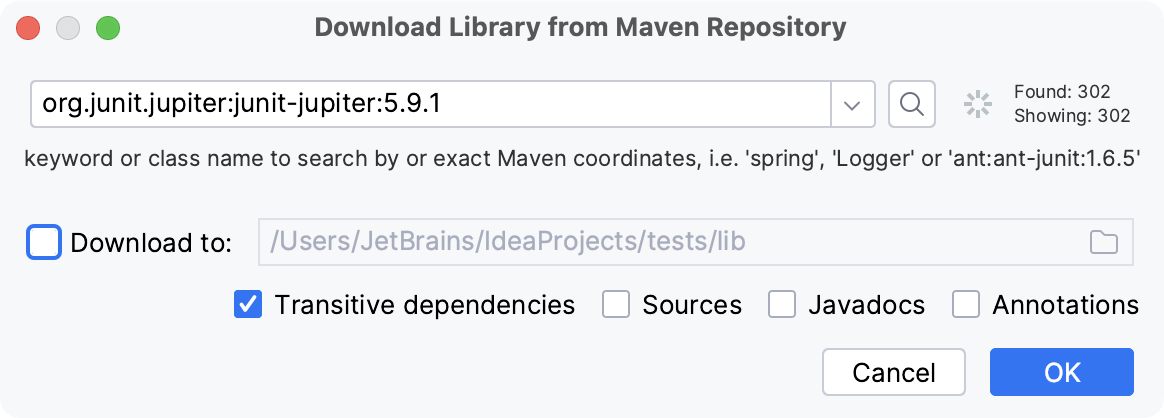
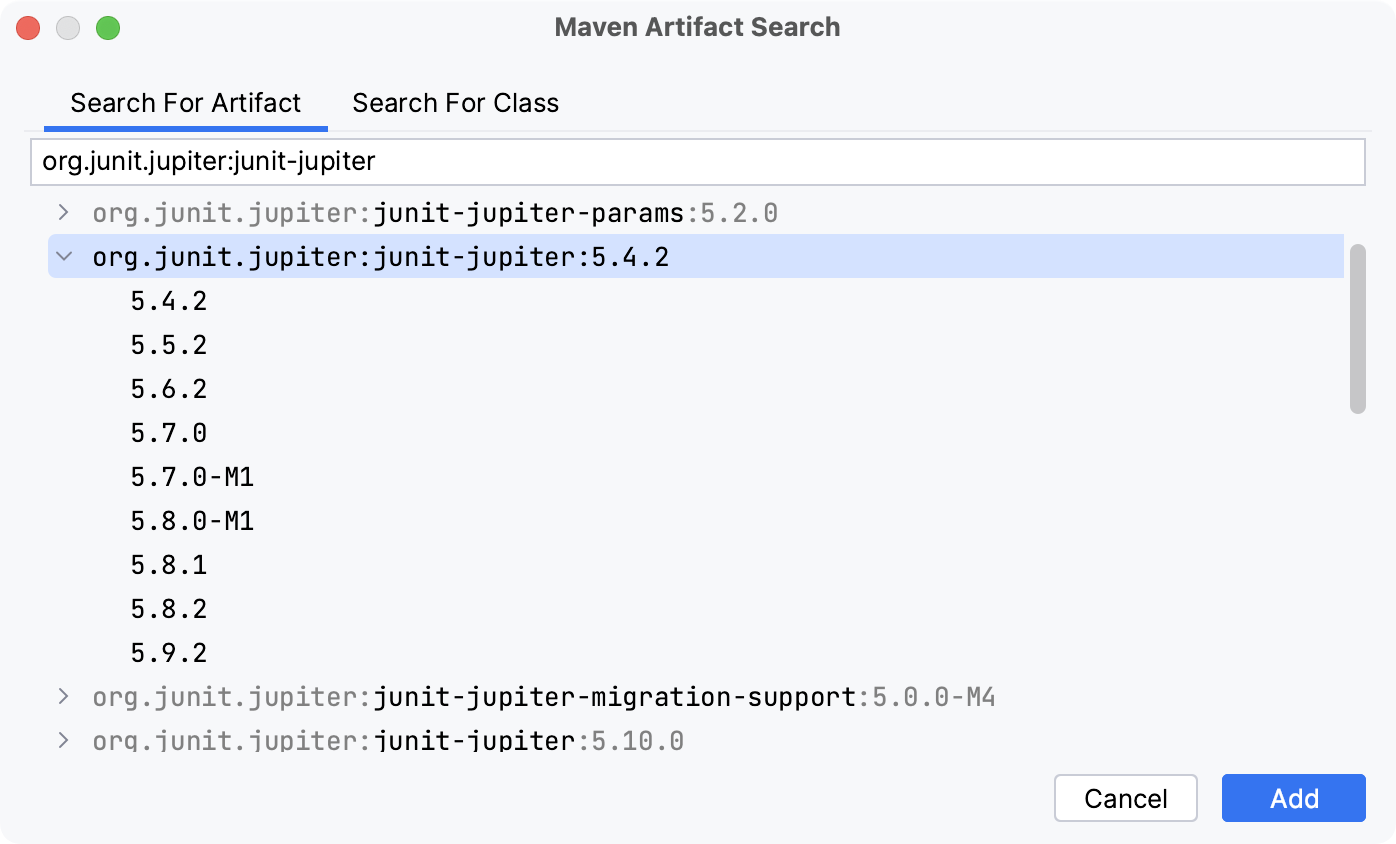
.In the dialog that opens, specify the necessary library artifact, for example:
org.junit.jupiter:junit-jupiter:5.9.1.Apply the changes and close the dialog.
 in the
 Before you start creating tests, make sure that the Test Sources Root is configured for your project. The Test Sources Root is a folder that stores your test code. In the Project tool window, this folder is marked with the  Test Root icon .
In the Project tool window (), create a new directory in which you will store your test code.
Right-click the new directory and select .
The tests folder should be marked with the
icon.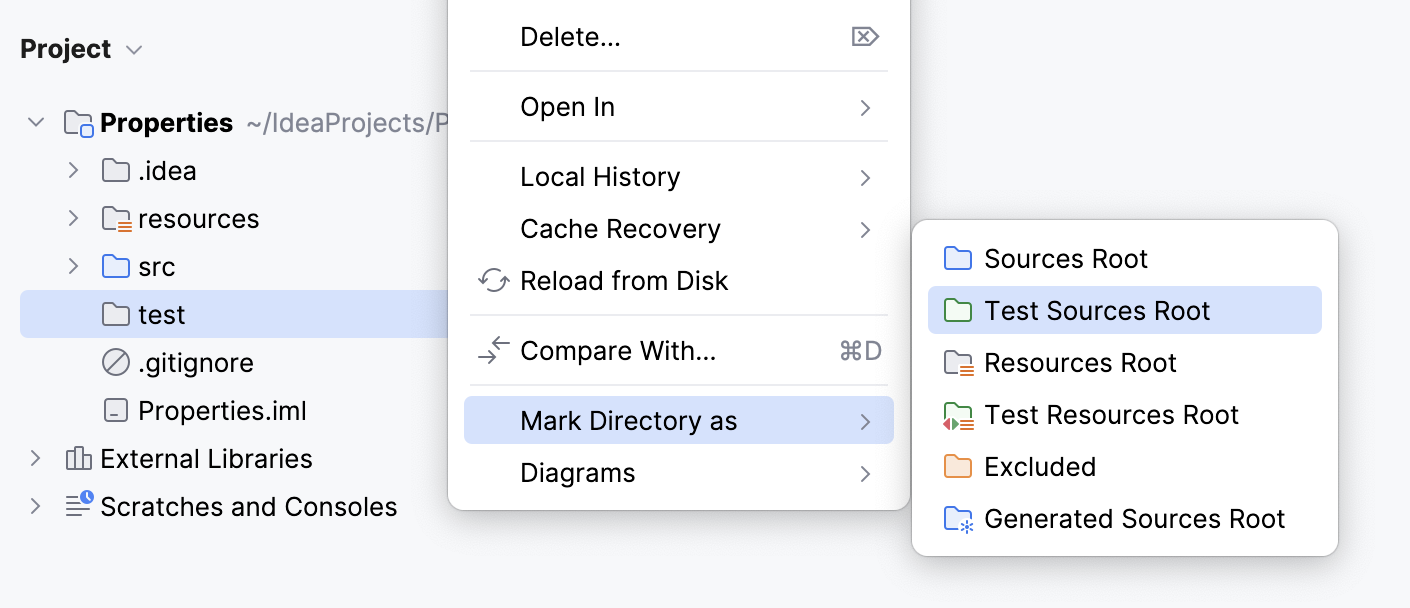
 in the
  icon in the
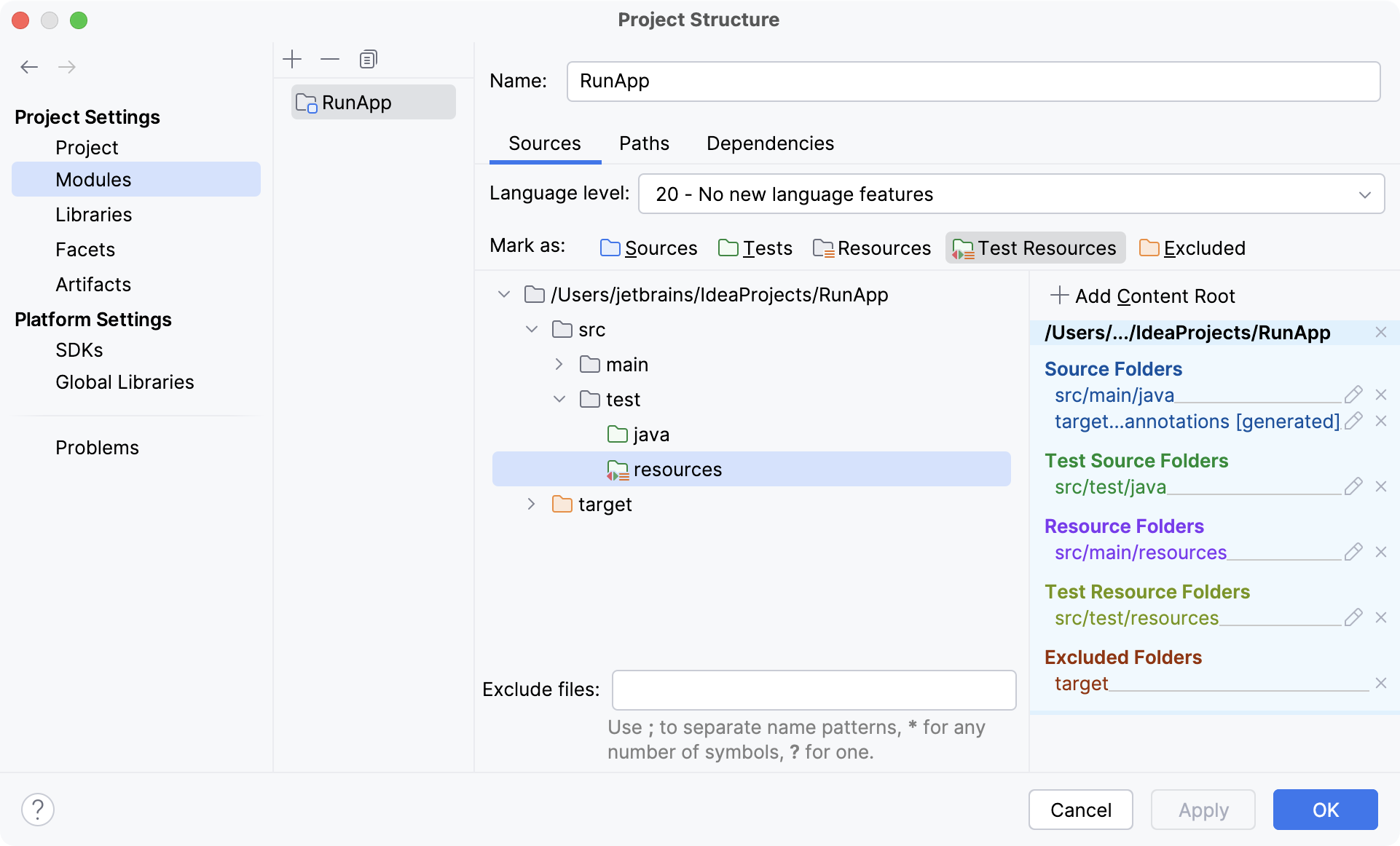
 Test Resources Root is a folder that stores files associated with your test sources. In the Project tool window, this folder is located in the test root and is marked with  .
.
In the main menu, go to ().
Under Project Settings, click Modules and then open the Sources tab on the right.
Right-click the test folder and select New Folder. Name the folder
resources.Right-click the new folder and select Test Resources. The folder will be marked with the
icon.Apply the changes and close the dialog.