Play Framework
note
IntelliJ IDEA supports Play versions 2.4 and later.
Launch the New Project wizard. If no project is currently opened in IntelliJ IDEA, click New Project on the welcome screen. Otherwise, select from the main menu.
From the options on the left, under the Generators node, select Play 2.
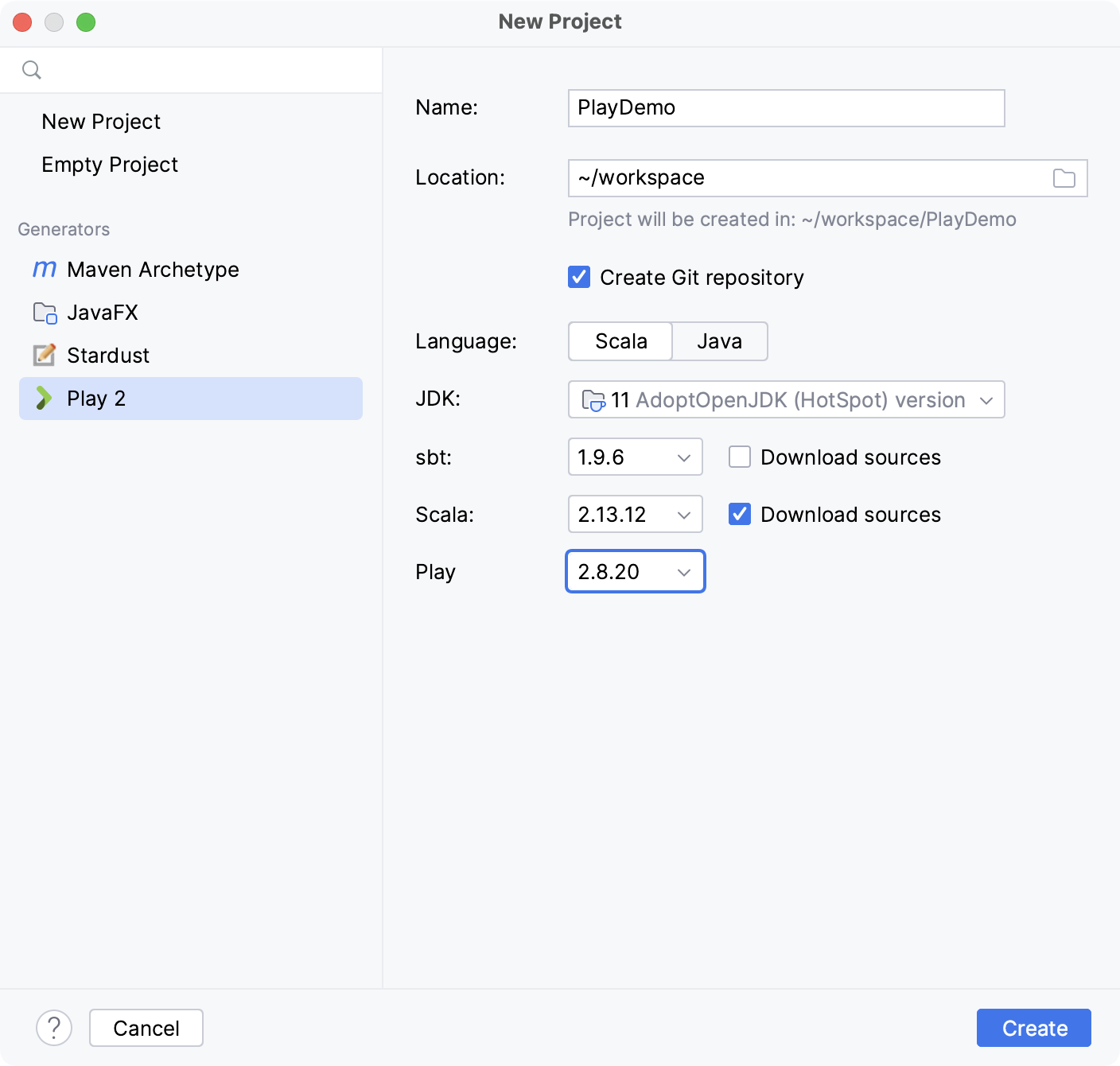
Follow the steps suggested in the wizard and click Create.
IntelliJ IDEA generates the Play project with the appropriate structure, dependencies and an executable application.
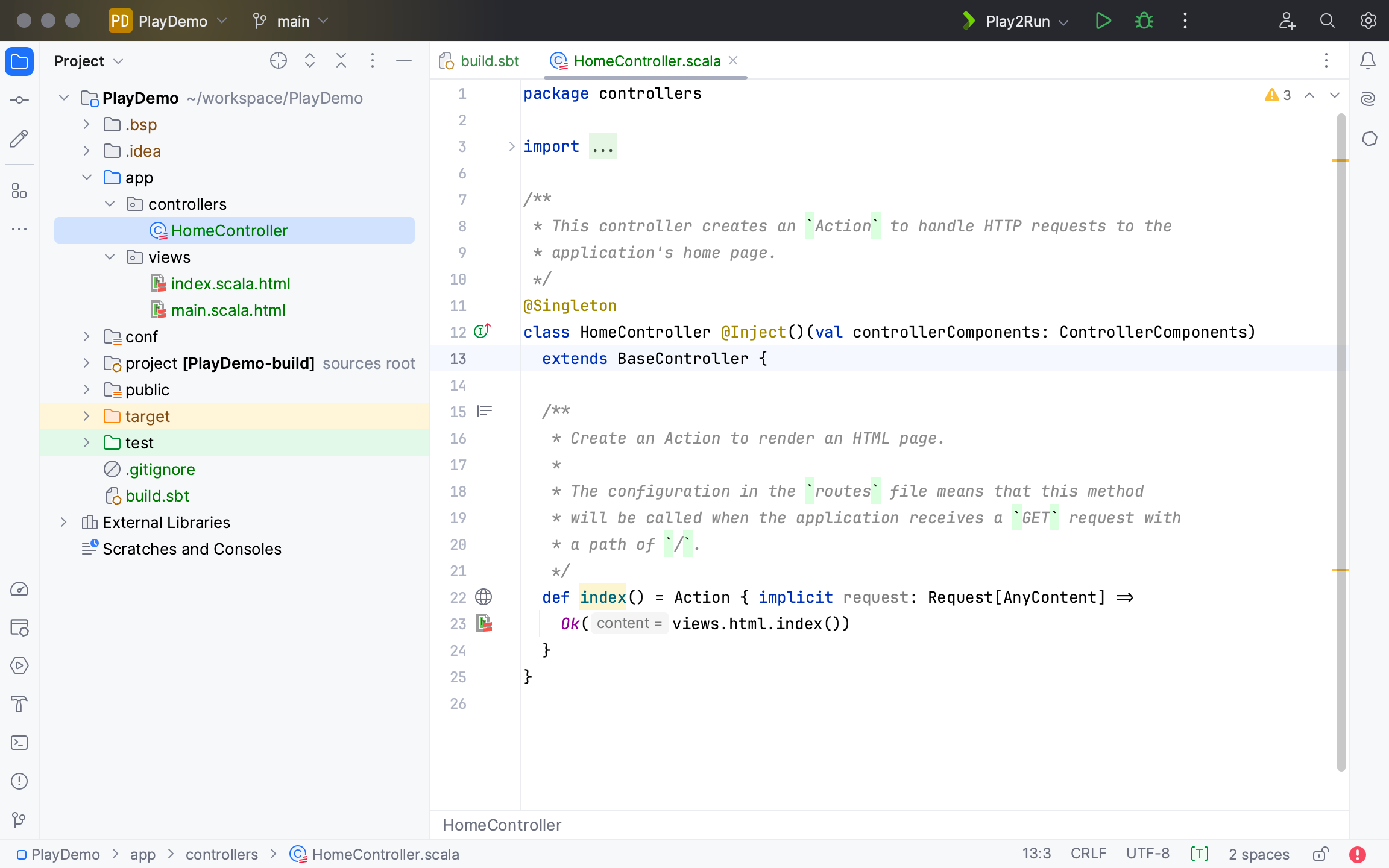
If you want to run the application:
In the project tool window, right-click the application.
In the context menu, select Run Play 2 App.
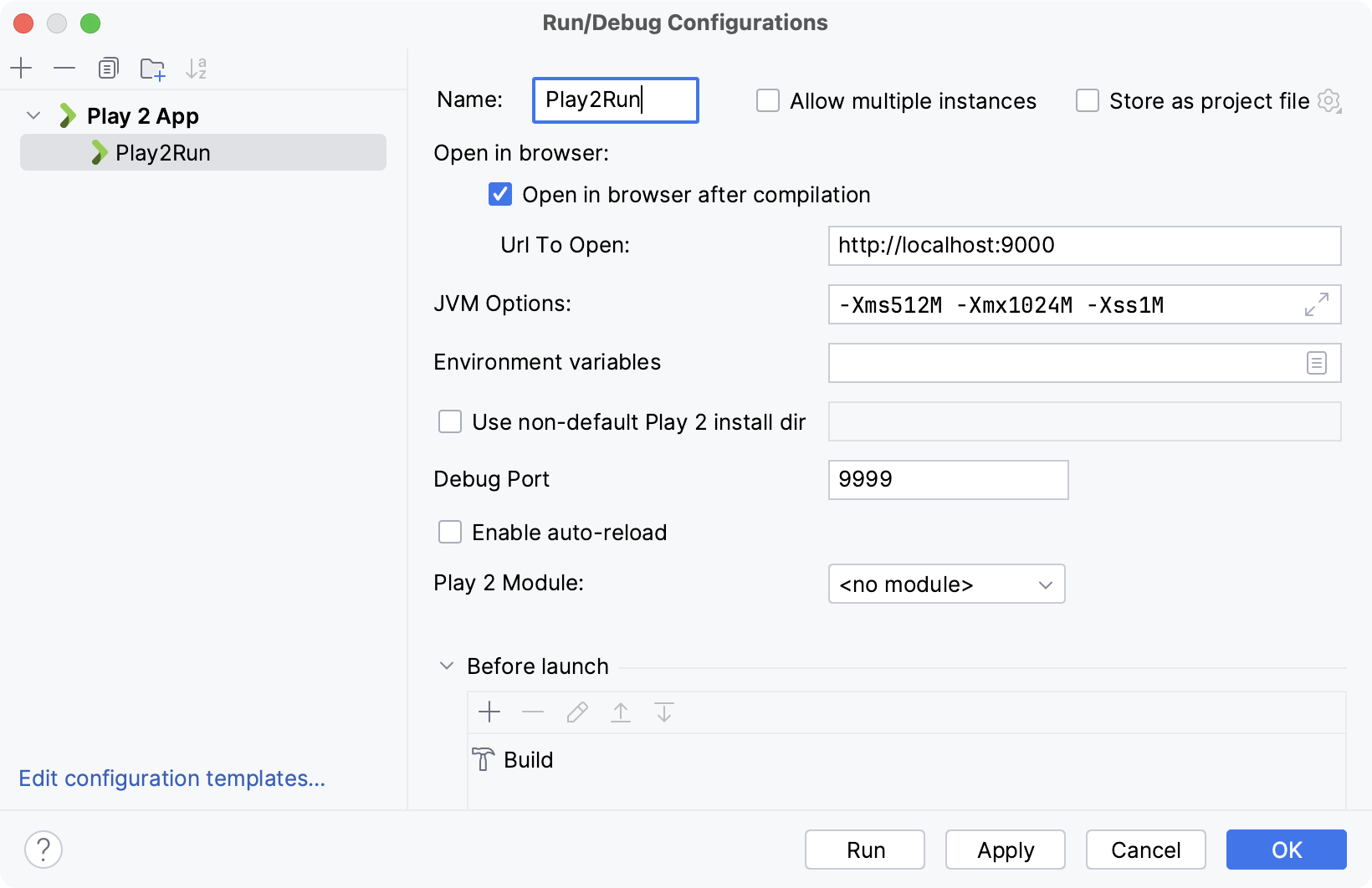
If you need to access the Run/Debug Configurations dialog:
Go to .
Click the
 and select Play 2 App to create a new configuration.
Specify run/debug configuration settings. The default settings are enough for running and debugging purposes.
On the main toolbar, click the
 icon to run or the
  icon to debug your application.
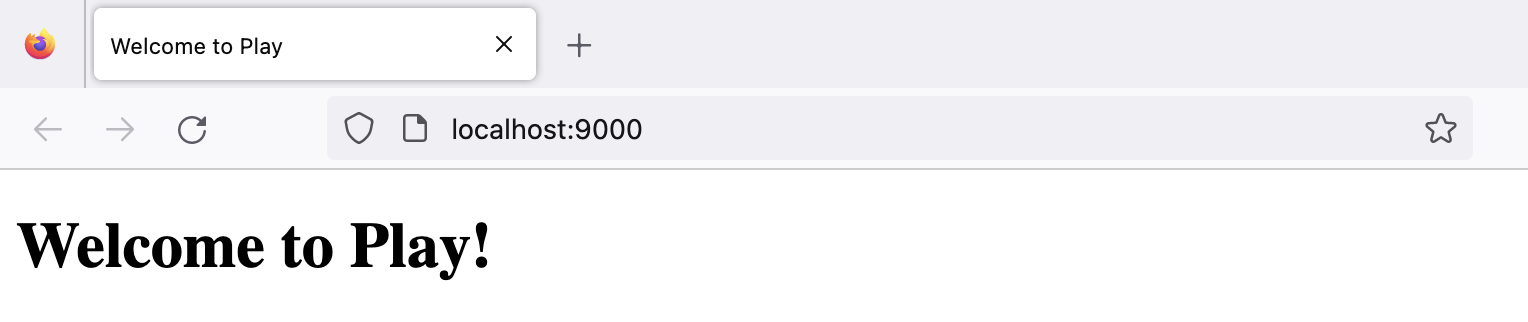
You can check the output of your application in the default browser http://localhost:9000. If you want to stop the server session, press Alt+D (Cmd+P for macOS).
Press CtrlAlt0S and from the options on the left select .
Depending on what settings you want to configure, on the Play2 settings page, select the appropriate tab and adjust the settings. Use the Other tab to check and edit the list of template imports that get retrieved from the descriptor when you refresh your project.
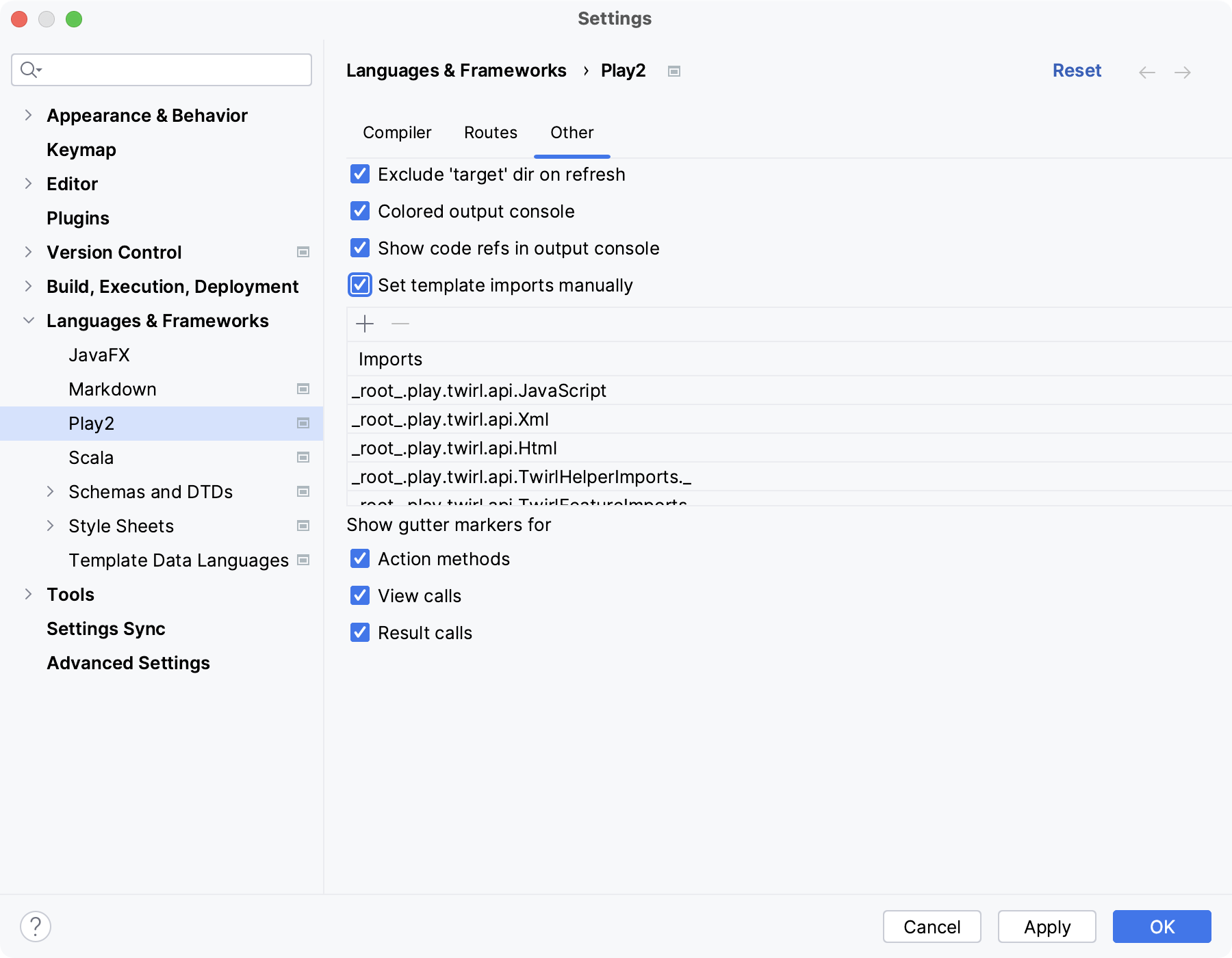
To manually add a template, delete, or edit the existing ones, select the Select template imports manually option so the Imports section becomes active and adjust the list of imports accordingly.
Thanks for your feedback!